Lesson 9
Files, Images and Web Search
20 min
Attach a document or an image, use web search and voice.
Definition
An AI tool is considered multimodal when it can understand and produce several types of content: text, files, images, or voice. Web search is a feature that allows it to access recent Internet pages to supplement its answers and cite its sources.
ChatGPT Is Not Limited to Text
Depending on your plan and version, ChatGPT can also work with files, images, voice, and information from the Internet. Available features and their limits change frequently: if an option described here does not appear in your interface, it is probably related to your plan or version.
These features save you time: instead of copying a document or describing an image in words, you can add it directly to the conversation. The principle remains the same as with text: the more precise your request, the more useful the response.
Before choosing a feature, start by defining the expected result: understanding a document, comparing several ideas, correcting an error, or obtaining recent information. A single conversation can combine several types of content. For example, you can attach a screenshot of a table and then request a written explanation adapted to your level.
Also remember to specify the target audience and the response format. A summary intended for a beginner will be different from a technical analysis. You can request a short list, a comparison table, or a step-by-step explanation, then refine the response in subsequent messages.
Adding a File to the Conversation
Next to the message input area, an attachment button (often shaped like a + or a paperclip) allows you to attach a document: PDF, text file, spreadsheet, and more. You can then ask questions about its content.
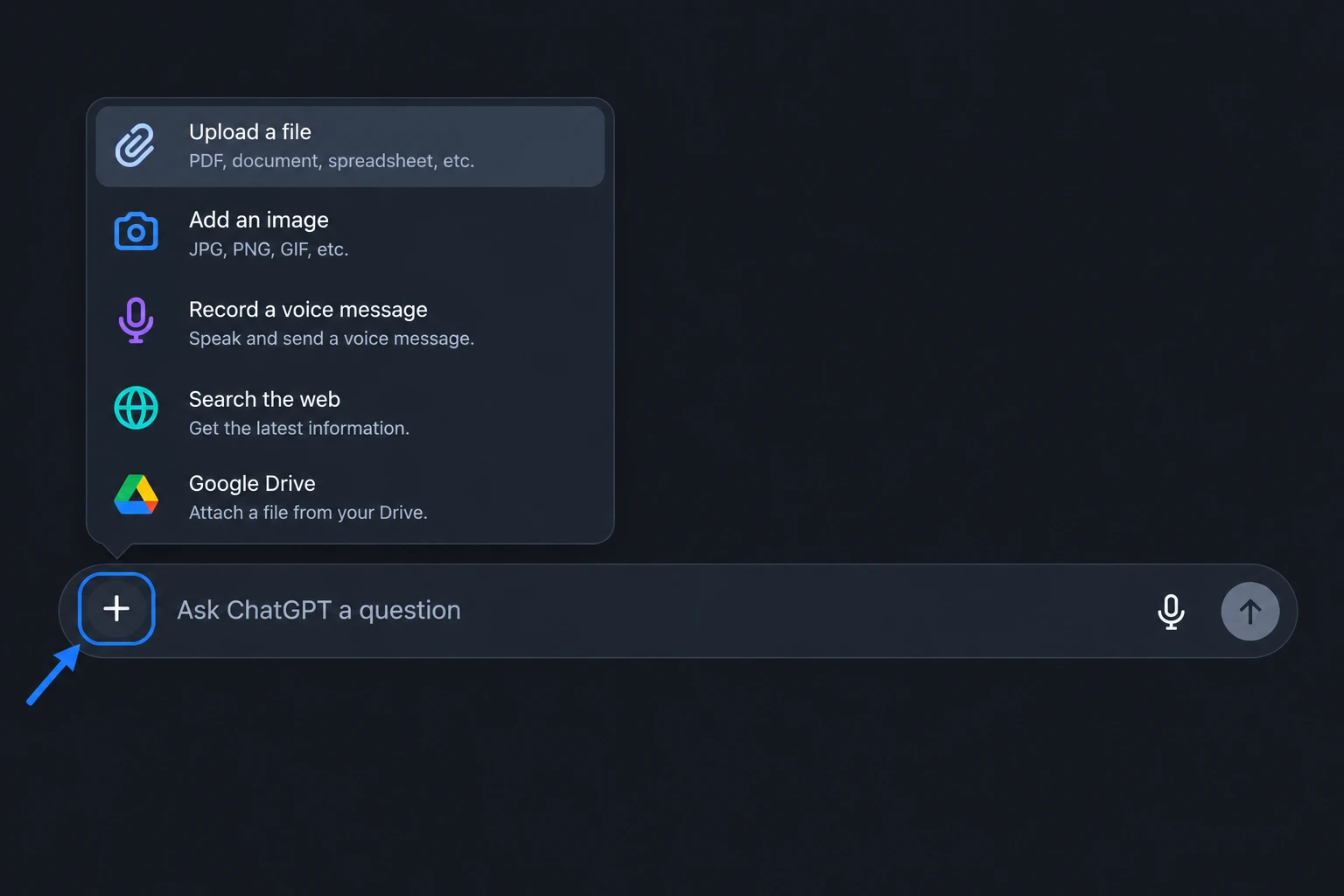
Here is a PDF of my course. Summarize each chapter in
3 lines, then list the 5 essential concepts I absolutely
need to remember.
Common file formats includePDF,DOCX,TXT, and spreadsheets such asXLSXorCSV. If your file is too large, ChatGPT may only read part of it: in that case, divide it into chapters or specify the section you are interested in.
To make analyzing a long document easier, specify the pages or chapters to examine. You can also ask ChatGPT to distinguish main ideas from secondary examples, define difficult words, and suggest revision questions. If you are studying a course, start with an overall summary before working through each section separately.
Read this document and explain the three essential ideas in simple words. For each idea, give a concrete example, then prepare three questions to check my understanding.When asking a specific question about a file, also ask where the answer can be found in the document. This allows you to return to the original passage and avoid confusing information contained in the file with knowledge added by the assistant. If a passage is unreadable or missing, ask it to point that out rather than guessing.
Working With a Data Spreadsheet
If you attach a spreadsheet, ChatGPT can help you identify trends, calculate totals, or present the results more clearly:
Here is a file containing my monthly expenses.
Calculate the total for each category, identify the most expensive
category, and suggest 3 ways to reduce my spending.
Always verify important calculations: ChatGPT can make mistakes with numbers. You can ask it toShow the steps of your calculationto check the reasoning.
For a spreadsheet, start by explaining what the columns represent: dates, categories, quantities, or amounts. Specify whether some rows contain totals, whether values are expressed in euros or another unit, and whether empty cells should be ignored. These details help prevent mixing data that cannot be compared.
Analyze this table. Identify empty cells, duplicates, and unusual values. Explain potential problems without modifying the data, then suggest a method for checking it.You can then request a more readable presentation, such as a ranking of expenses or a chart showing monthly changes. However, a chart is only useful if the original data is consistent. Check the units, periods, and formulas before using the result to make an important decision.
Analyzing an Image
You can attach a photo or screenshot and ask ChatGPT to describe it, extract text from it, or explain what it shows (a diagram, chart, error message, etc.).
Here is a screenshot of a chart. Explain what it shows
in simple terms and tell me what conclusion we can draw from it.
For better results, use a sharp, well-framed, readable image. Also specify what you want to do with it, for exampletranscribe the text in this photoorexplain this error message. A blurry or cropped image can easily lead to an incorrect interpretation.
An image can contain several types of information at once: objects, text, symbols, and their positions. To obtain a useful analysis, specify exactly which part interests you. For example, ask ChatGPT to explain only the legend of a chart, describe the steps of a diagram, or identify the visible elements of an interface.
Here is a screenshot of a software application. Describe the visible buttons, explain what the three main ones do, and indicate the steps needed to perform the action shown.You can also compare two screenshots, for example before and after a modification. In that case, ask ChatGPT to list only the observable differences. Keep in mind that small text, hidden areas, and very blurry elements may be misinterpreted. For an important detail, a second enlarged screenshot is often preferable.
Searching the Web for Recent Information
By default, ChatGPT relies on what it learned during training, which has a certain cutoff date. When web search is available and enabled, it can access recent pages and provide clickable sources . This is useful for news, prices, opening hours, or information that changes over time.
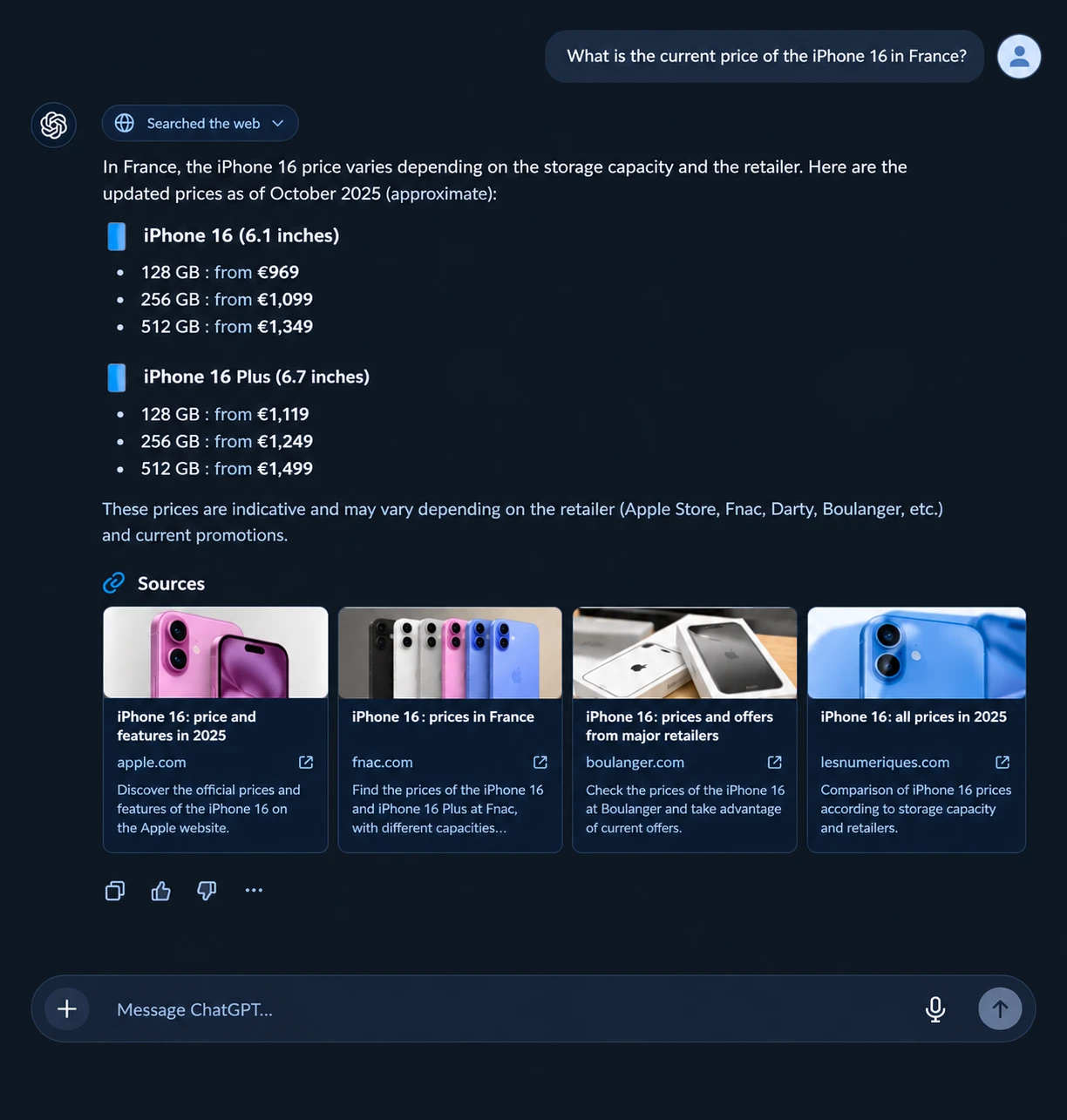
To take advantage of web search, phrase your request as a genuine question about current information, for exampleWhat is the latest news on this topic?. Avoid overly vague wording: specify the location, time period, or subject to obtain truly relevant results.
Internet search is particularly useful when the answer depends on a date: prices, schedules, software versions, official announcements, or events. Always specify the relevant country or city, because information that is valid in one place may be incorrect elsewhere. When searching for software information, also mention the version you are using if you know it.
Search for the most recent official information on this topic. Specify the publication date of each source and separate confirmed facts from points that are still uncertain.An answer obtained without searching does not guarantee that the information is up to date. When recent developments matter, explicitly request a current verification. If no reliable result can be found, it is better to know that than to receive an overly confident answer.
Verifying Sources
Even when sources are provided, it is still important to verify the information. A good habit is to explicitly request links:
Search the web for the current opening hours of the public library in my city.
Give me the answer in one sentence and include the sources you used.- Open the links : check that the page actually supports what ChatGPT claims.
- Prefer official websites : government agencies, organizations, and the websites of the companies concerned.
- Check the date : an old page may contain outdated information.
Not all sources have the same value. For an administrative rule, prioritize the website of the responsible organization. For a product, verify its specifications on the manufacturer's website. For a scientific topic, look for a serious publication or a recognized institution. An article can be well written while still being outdated or incomplete.
Also compare the dates and contexts of sources. Two pages may appear contradictory because they refer to different countries or periods. When several reliable sources disagree, ask ChatGPT to present the differences without forcing a conclusion. This approach develops your critical thinking and helps you use answers cautiously.
Speaking Out Loud
Applications often offer dictation (you speak, and the app writes) and a voice mode for spoken conversations. This is useful for practicing a language or asking a question when your hands are busy.
Dictation simply converts your voice into text in the message input area, while voice mode allows a real spoken conversation with spoken responses. Speak clearly in a quiet place, and always review what has been transcribed before sending.
Be Careful What You Share
A file or photo you upload leaves your device. Do not upload identity documents, bank statements, medical records, or other people's confidential data.
Voice mode can be used to simulate a conversation in a foreign language, prepare for an interview, or review a lesson orally. You can ask the assistant to ask one question at a time, wait for your answer, and correct important mistakes. Start with short conversations, then gradually increase the difficulty.
Help me practice spoken English for a few minutes. Ask one simple question at a time, wait for my answer, and briefly correct my vocabulary mistakes.If you use dictation, check proper names, numbers, and technical terms before sending your message. A transcription may turn a mispronounced word into a different one. For private documents, remove personal information that is not necessary for your question and review the service's privacy settings.
Which Feature Should You Choose?
- You have a document to understand : attach the file and request a summary or answers to your questions.
- You have a visual to explain : attach the image with clear instructions about what you expect.
- You need recent information : enable web search and request sources.
- You prefer speaking to typing : use dictation or voice mode.
Combining Several Features in One Task
Imagine you are preparing a presentation. You can start by attaching your course materials to identify the main ideas, add an image to explain a difficult diagram, and then search the web for a recent example. Finally, use voice mode to practice presenting your topic. Each tool serves a different stage of the same objective.
Based on the attached document, prepare an outline for a five-minute presentation. Explain difficult concepts, suggest a concrete example to verify on the web, and finish with five revision questions.Work in small steps rather than requesting everything at once. First verify the document summary, then the explanations, and finally the external information. This progression makes corrections easier and helps you understand where each answer comes from. The goal is not only to work faster but also to learn more effectively and stay in control of the final result.
Key Takeaways
- You can attach files and images to obtain summaries, explanations, or extracted text.
- Web search helps you find recent information, but you should always open and verify the sources.
- Voice is useful for dictation or practicing a foreign language.
- Never share sensitive data , even to save time.
Exercise
Go Further