Lesson 6
The Integrated Terminal
18 min
Open and use the terminal directly from VS Code, without any external tool.
Definition
A terminal is a window in which you communicate with your computer by typing written commands, instead of clicking buttons. VS Code's integrated terminal is a full terminal displayed directly inside the editor, already placed in your project folder.
Why use the integrated terminal?
Many development tools (package managers like npm, Git on the command line, development servers...) are used through command lines. Rather than juggling between VS Code and a separate "Terminal" or "Command Prompt" application, VS Code builds a full terminal right into the editor, already positioned in your open project folder.
The benefit is twofold: you keep everything in view in a single window, and you avoid the classic mistakes caused by a terminal opened in the wrong place. You can write your code in the editing area, run a command just below, look at the result, then go back to your code, without leaving VS Code for a single second. This quick back-and-forth is at the heart of a developer's daily work.
At first, typing commands can seem intimidating, but don't worry: you will only use a handful of them day to day, and they quickly become reflexes. The basic commands in this lesson can't break anything on their own. Just stay in your project folder, and be careful later with commands that delete files.
Opening the terminal
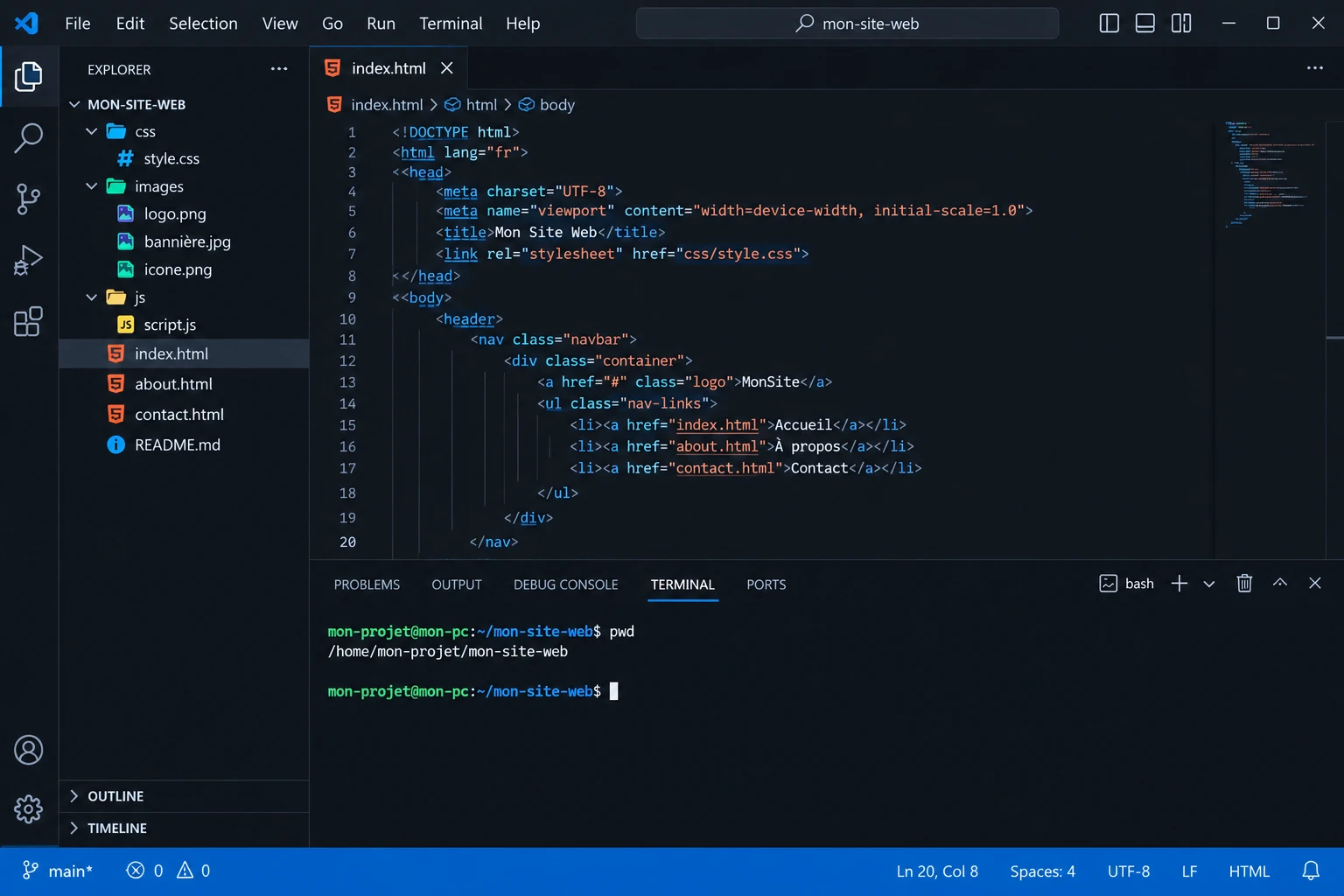
The fastest shortcut is Ctrl + ` (the "backtick" key, usually above the Tab key, just under Esc; on a Mac, it is also Ctrl, not Cmd). You can also go through the menu Terminal → New Terminal. A panel opens at the bottom of the window, with a command prompt already positioned in your project folder.
On some keyboards (notably many non-US layouts), the backtick key requires a special key combination. If the shortcut doesn't work, don't panic: simply use the menu, or the Command Palette (Ctrl/Cmd + Shift + P) by typing "Terminal". You can also show the panel via the menu View → Terminal.
Understanding the command prompt
When the terminal opens, you see a line waiting for your input: this is the command prompt. It usually shows your username and the folder you are in. You type your command after it, then confirm with the Enter key: the terminal then runs the instruction and displays the result below. If nothing is displayed, that is often a good sign: many commands produce no message when they succeed.
A few basic commands
The integrated terminal uses the same "shell" (command interpreter) as the one configured on your system: PowerShell or Command Prompt on Windows, zsh or bash on macOS and Linux. Here are a few basic commands that work in most shells to help you find your way around:
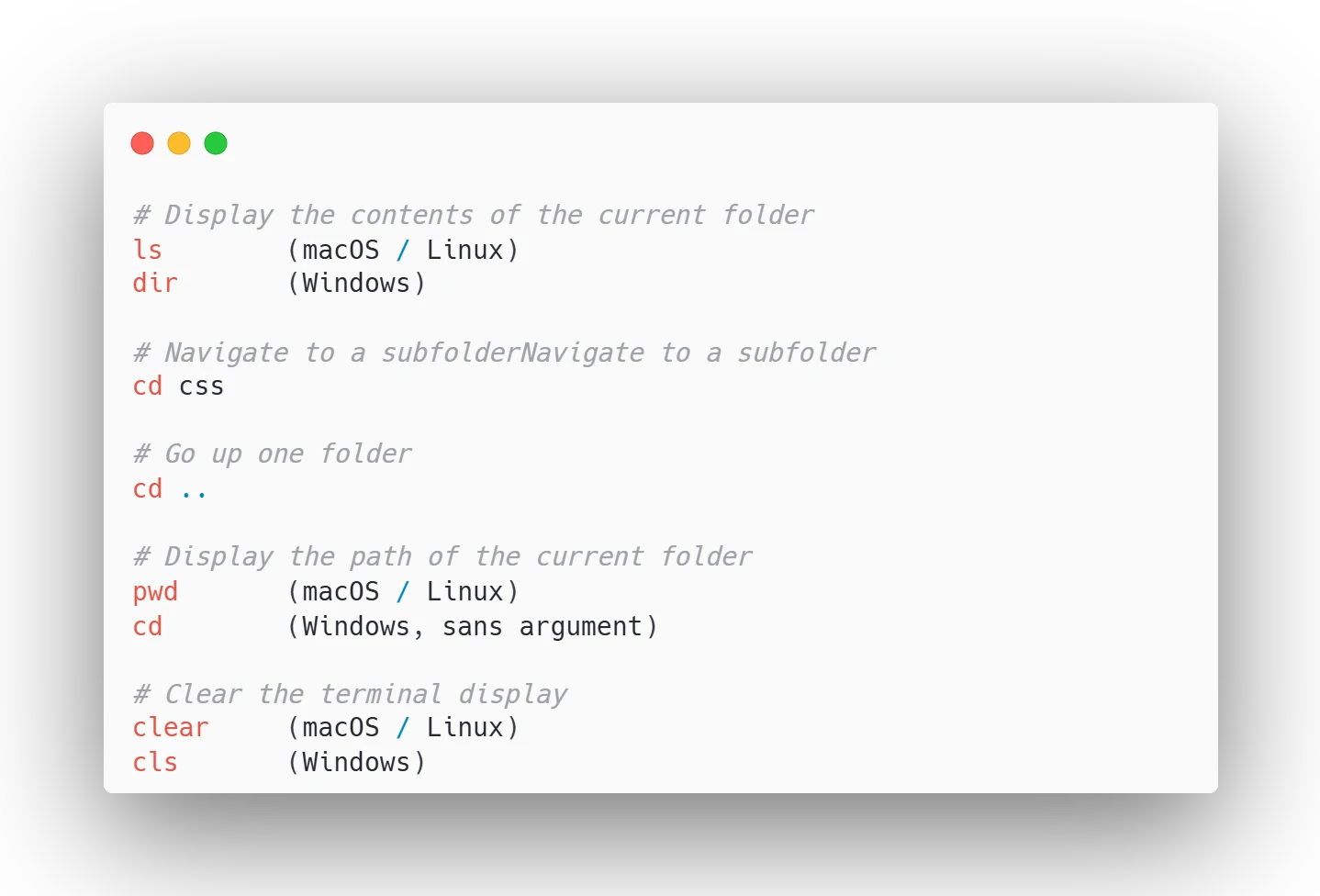
ls/dirlists the files and folders present where you are.cd("change directory") moves you into a given folder.cd ..takes you up one level, into the parent folder.mkdircreates a new folder, for examplemkdir images.clear(orclson Windows) clears the terminal screen so you can start on a clean page.- The Tab key automatically completes the name of a file or folder as you type — a huge time-saver to make a reflex from the start.
- The up / down arrow keys let you browse the history of the commands you typed previously.
These few commands are more than enough to get started. Above all, remember that the terminal is very literal: a typo, an extra capital letter (on macOS and Linux) or a forgotten space and the command fails. Always read the error message displayed, as it usually says what is wrong.
Several terminals at the same time
You can open several terminals at once with the "+" icon located on the right of the terminal panel — handy, for example, to keep a development server running in one tab while typing other commands in a second tab without interrupting it. A dropdown menu lets you easily switch from one terminal to another, and you can also split the panel to see two terminals side by side.
Choosing your shell
Beyond the default shell, you can choose another one via the small arrow next to the "+" icon. On Windows, for example, you can choose between PowerShell, Command Prompt or Git Bash, if Git is installed. To get started, keep the shell offered by default: the commands in this lesson work there without any difficulty.
Good to know
To stop a program running in the terminal (for example a local server), the universal shortcut is Ctrl + C (on a Mac too, with the Ctrl key). The terminal then becomes available again to type new commands.
Closing and reopening the panel
The Ctrl + ` shortcut works both to open and to hide the terminal panel, without ever actually closing the current session: your previous commands and the folder you are in are kept when you reopen it.
To permanently end a session, click the trash can icon of the terminal panel: the selected terminal is then closed and its history disappears. You can also enlarge the panel by dragging its top border, or switch it to full screen with the dedicated icon, when you need to read long messages.
Running tools from the terminal
The terminal lets you use all the tools installed on your machine. A good habit is to check that a tool is available by asking for its version: for example git --version for Git, or node --version for Node.js. If the terminal displays a version number, the tool is installed; if it replies that the command is not found, you need to install it or add it to the PATH, as you saw for the code command.
Common mistakes to avoid
- Being in the wrong folder: before running a command, check where you are, because many commands act on the current folder.
- Forgetting the quotes around a name containing spaces: without them, the terminal thinks it is several different items.
- Closing the terminal while a server is running: the program stops immediately. Use
Ctrl + Cinstead to stop it cleanly.
Finally, to copy and paste in the terminal, use Ctrl + Shift + C and Ctrl + Shift + V on Linux, or the usual shortcuts on Windows and macOS. On Windows, note that Ctrl + C only copies if some text is selected; otherwise it interrupts the running program. With a little practice, the terminal will become a valuable ally rather than a source of worry.
Practical exercise
my-first-project project, use ls (or dir) to list its contents, then move into the css folder with cd css.Going further