Lesson 7
Shortcuts and Productivity
20 min
Command palette, multi-cursor and essential keyboard shortcuts to save time.
Definition
A keyboard shortcut is a combination of keys that triggers an action without going through the mouse or the menus.Productivity, in a code editor, refers to the ability to write, edit and navigate your code faster and with less effort, notably thanks to these shortcuts.
Why learn shortcuts?
Every time you take your hands off the keyboard to grab the mouse, you lose a second or two and, above all, you interrupt your concentration. Over a working day, these small pauses add up to a considerable amount of time. Shortcuts let you stay in the flow of your code, like a pianist who keeps their hands on their instrument. You don't need to know them all: a dozen well mastered is already enough to transform the way you work.
In this lesson, shortcuts are given with Ctrl/Cmd: use Ctrl on Windows and Linux, and Cmd on Mac. Where a shortcut differs on Mac, it is indicated explicitly.
The Command Palette: the first shortcut to know
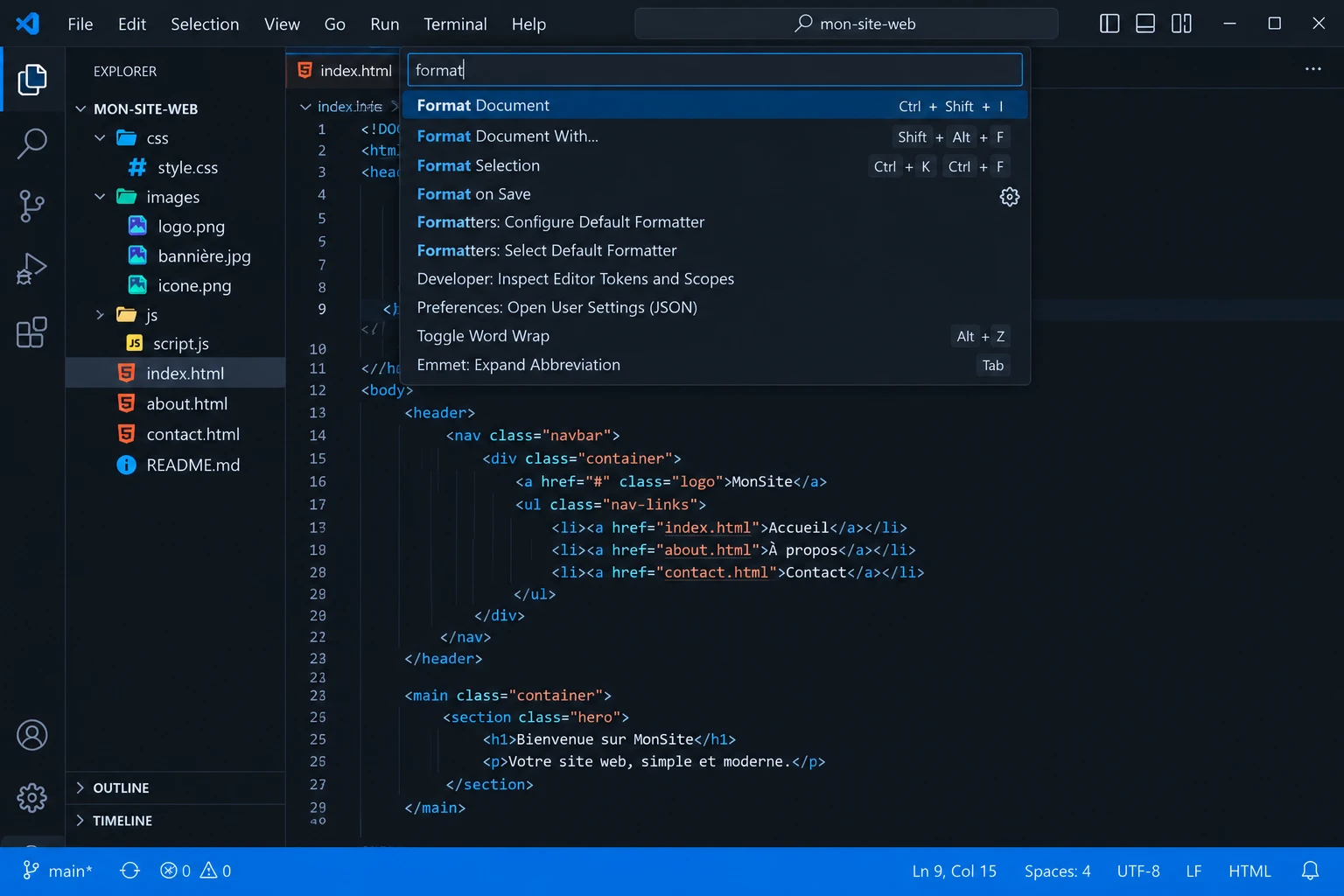
If you had to remember only one shortcut from this whole lesson, it would be this one: Ctrl + Shift + P (or Cmd + Shift + P on Mac) opens the Command Palette, a universal search bar that gives access to absolutely every action in VS Code: changing the theme, formatting the file, installing an extension, opening a setting... As soon as you no longer know where to find a feature in the menus, this shortcut is your best reflex.
Another advantage: next to each command, the palette displays the associated keyboard shortcut when there is one. It's an excellent way to learn new shortcuts as you go, simply by using the palette.
Essential navigation shortcuts
Ctrl/Cmd + P: quickly open a file by its name.Ctrl + Tab: switch between recently opened tabs (Ctrlon Mac too, sinceCmd + Tabis reserved by macOS for switching applications).Ctrl + `: show / hide the integrated terminal (Ctrlon Mac too).Ctrl/Cmd + B: show / hide the sidebar (the Explorer).Ctrl/Cmd + \: split the editing area to see two files side by side.Ctrl/Cmd + F: search for a word in the open file.Ctrl/Cmd + Shift + F: search for a word in all the project's files.Ctrl + G: go directly to a line number.
Text editing shortcuts
These shortcuts act directly on the code you write. They work in almost every language supported by VS Code.
Ctrl/Cmd + /: comment or uncomment the current line (or the selection).Ctrl/Cmd + D: select the word under the cursor, then each new press adds the next identical occurrence to the selection — perfect for renaming a variable that appears several times.Alt/Option + click: place several cursors at different spots to edit several lines at the same time.Alt/Option + up/down arrow: move the current line up or down, without having to cut and paste it.Shift + Alt/Option + up/down arrow: duplicate the current line.Shift + Alt/Option + F: automatically format the whole file (indentation, spaces...). On Linux, the shortcut isCtrl + Shift + I.Ctrl/Cmd + Z: undo the last change, andCtrl/Cmd + Shift + Zto redo it.Ctrl + H(Cmd + Option + Fon Mac, becauseCmd + Hhides the window): find and replace text in the open file.
Moving around and selecting efficiently
A large part of the time spent in an editor consists of moving the cursor and selecting text. Learning a few keyboard gestures avoids aiming with the mouse, which is both faster and more precise.
Ctrl + left/right arrow: jump from word to word rather than letter by letter (Option + left/right arrowon Mac).Home/End: go to the start or the end of the line (on a Mac, useCmd + left/right arrow).Ctrl/Cmd + L: select the entire line, very handy before copying or deleting it.Shift + arrows: extend the selection character by character or line by line.Ctrl/Cmd + Shift + K: delete the current line in a single move.
Multi-cursor in practice
Multi-cursor deserves special attention because it is one of the shortcuts that saves the most time once you get the hang of it. Imagine ten lines of code that all start with the same word you want to change: rather than changing it ten times, select the word once, then press Ctrl/Cmd + D as many times as needed to select all its occurrences, and type the replacement directly: all the selected occurrences change at the same time. To select all the occurrences in the file in one go, use Ctrl/Cmd + Shift + L.
You can also place cursors by hand: hold down theAlt key (or Option on Mac) and click at each place where you want to write. Everything you type next appears in all the places at once. It is ideal for adding the same text at the start of several lines, for example a list of items to prefix or to wrap in quotes.
Good to know
You can view and customize all of VS Code's keyboard shortcuts viaFile → Preferences → Keyboard Shortcuts (on a Mac, Code → Settings → Keyboard Shortcuts), or with Ctrl/Cmd + K then Ctrl/Cmd + S. Every shortcut can be changed there, in case of a conflict with another application or to adapt it to your habits.
Adjusting the display for your comfort
If the text seems too small or too large, you can zoom in with Ctrl/Cmd + + and zoom out with Ctrl/Cmd + -. On Windows and Linux, the F11 key switches the window to full screen. These settings never alter your code: they only change what you see on screen, which is valuable for working comfortably over long periods.
Zen Mode: focusing on your code
The shortcut Ctrl/Cmd + K followed by Z activates "Zen Mode": all the bars, menus and panels disappear to leave only your code on screen, in full screen. PressEsc twice to exit it.
This mode is particularly useful for writing a long passage of code or rereading a file without distraction. It doesn't delete anything: everything that was hidden reappears exactly as before as soon as you leave the mode.
The ten shortcuts to remember first
If the list seems long, start with these, which cover the essentials of daily work:
Ctrl/Cmd + Shift + P: the Command Palette.Ctrl/Cmd + P: open a file.Ctrl/Cmd + S: save.Ctrl/Cmd + Z: undo.Ctrl/Cmd + F: search.Ctrl/Cmd + /: comment.Ctrl/Cmd + D: select the next occurrences.Alt/Option + up/down arrow: move a line.Ctrl/Cmd + B: hide the sidebar.Ctrl + `: open the terminal.
When a shortcut doesn't work
Sometimes a shortcut doesn't react as expected. The most common causes are a different keyboard layout (some keys, such as the backtick or the backslash, are typed differently on many non-US keyboards), a conflict with another piece of software that uses the same combination, or an extension that has replaced the original shortcut. In that case, open the keyboard shortcuts screen, search for the action in question and check or change the associated combination.
How do you memorize shortcuts?
There's no need to learn the whole list by heart. The most effective method is to pick one or two a day and deliberately use them, even if it slows you down at first. After a few days, your fingers will find the combination without you thinking about it. You can also keep this lesson handy and come back to it when needed, until the gestures become natural. Consistency matters far more than quantity: five minutes of practice a day is worth more than one long session.
Practical exercise
Ctrl/Cmd + D several times in a row to select all its occurrences and replace it in one go.Going further
Ctrl/Cmd + K then Z, observe the result, then leave it by pressing Esc twice.